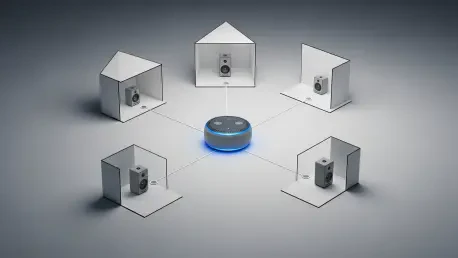

The traditional concept of a residential telephone has undergone a radical transformation as voice-activated smart speakers have effectively replaced the clunky hardware of previous decades. These sophisticated hubs now serve as the central nervous system for household communication, providing a seamless way to bridge the gap between digital messaging and real-time verbal interaction. By leveraging existing internet connections, an Amazon Echo transforms into a versatile communication portal capable of reaching landlines and mobile phones across several countries, including the United States, the United Kingdom, Canada, and Mexico. This shift represents more than just a convenience; it is a fundamental change in how families stay connected without the burden of additional monthly service fees or specialized wiring. As users increasingly move away from legacy systems, understanding the intricate setup and operational nuances of these devices becomes essential for maintaining a modern, connected home environment in the current year.
1. Setting Up Alexa-to-Alexa Calling: Establishing the Foundation
To begin the transition from a traditional phone to a smart speaker system, the initial setup requires the use of the mobile application on a smartphone. First, launch the Alexa application and navigate to the menu to select the Communicate option, which is typically represented by a speech bubble icon. Following this, the system requires a validation of identity, where the user confirms their name to ensure the profile matches the intended caller. The next critical phase involves granting permission for contact access; this step is vital because it allows the software to cross-reference the local address book with existing users in the network, facilitating easier connections with friends and family. Finally, the process concludes with the authentication of phone digits, where a mobile number is verified through a secure code to link the physical device with a recognizable caller ID. This sequence ensures that the Echo device is not merely a speaker but a verified communication terminal recognized by global networks.
The security and privacy implications of this setup cannot be overstated, as the verification of a mobile number serves as a safeguard against unauthorized usage. By authenticating the phone digits, the system establishes a digital handshake between the user’s mobile carrier and the cloud-based communication service. This link enables the Echo to display the correct caller ID when placing calls to traditional landlines, making the interaction indistinguishable from a standard phone call. Moreover, granting contact access is a one-time permission that significantly enhances the user experience by enabling voice-activated dialing without the need to memorize specific numbers. Once these foundational steps are completed, the device is fully integrated into the user’s personal communication ecosystem, allowing for hands-free interactions that were previously limited to high-end corporate telepresence systems. This integration represents the first step toward a completely hands-free domestic environment.
2. Calling Procedures: Navigating the Mobile Interface
Once the account is configured, placing a call using the app provides a convenient alternative when the user is away from the physical Echo device. The process begins by navigating to the Communicate tab within the application, which serves as the central hub for all outgoing and incoming messages. From this screen, the user should choose the Call button located at the top of the interface to open the dialing options. Finally, the user must select the individual they wish to reach from the synchronized contact list to initiate the connection. This method is particularly useful for users who want to use their smart home infrastructure to bridge calls between their mobile device and other Echo units, ensuring that the household remains reachable regardless of the user’s specific location. The interface is designed for speed, allowing for quick transitions between different modes of communication with just a few taps on the screen.
In addition to standard calling, the Drop In feature offers a more immediate form of connection that functions much like a traditional intercom system. To activate this specific capability, the user must go to the Communicate menu in the mobile application and press the Drop In icon. To ensure the feature is tailored to personal needs, the user should click on the My Profile link to access their individual settings and permissions. Within this section, the user must toggle on the Allow Drop In setting to enable the feature for the account. This allows authorized contacts or household members to connect instantly to the speaker without the recipient needing to manually answer the call. It is a powerful tool for quick check-ins or announcements across the home, effectively turning every Echo device into a responsive station for instant verbal exchanges that bypass the typical ringing and waiting associated with standard calls.
3. Internal Communications: Managing Domestic Intercom Systems
Managing a large household requires efficient ways to communicate between different rooms, and using the Drop In feature for home devices via the app is the ideal solution. The user starts by opening the Communicate screen on their phone and tapping the Drop In button to see a list of all active hardware in the residence. From there, the user can pick the specific device name they want to connect with, such as the kitchen or the nursery, to start an immediate audio or video link. This capability eliminates the need for shouting across hallways or moving between floors to deliver simple messages. It provides a level of connectivity that transforms a collection of individual speakers into a unified domestic network. By selecting specific devices, the user maintains a targeted communication flow that is both efficient and respectful of the privacy of other household members who may not need to hear the announcement.
For those seeking a more robust experience, turning on advanced communication tools provides access to higher fidelity audio and more reliable connection protocols. To access these, the user should enter the More section of the app and select the Settings menu to view the full list of configuration options. From there, clicking on Communication leads to a specialized submenu where the user can choose Enhanced Features. By switching the toggle to Enabled, the system unlocks improved performance metrics and additional settings that are not available in the basic configuration. These advanced tools are designed to optimize the voice-over-internet protocols used by the Echo, ensuring that call quality remains high even when network bandwidth is fluctuating. Activating these features is a strategic move for power users who rely on their Echo devices for frequent long-distance calling or complex multi-room intercom scenarios throughout the day.
4. Privacy and External Access: Controlling Contact Permissions
While connectivity is the primary goal, maintaining control over who can access the home via the Echo is a critical aspect of digital privacy. Granting Drop In access to outside contacts is a deliberate process that ensures only trusted individuals can use the intercom feature. To authorize someone, the user must head to the Communicate area and open their full Contacts list to find the desired person. After picking the person’s name, the user navigates to the permissions section to switch on the Allow Drop In toggle. This specific authorization is handled on a contact-by-contact basis, providing a granular level of security that prevents unauthorized “dropping in” by casual acquaintances. It ensures that only close family members or verified friends have the privilege of instant connection, preserving the sanctity of the home environment while still allowing for the convenience of modern, high-speed communication.
To manage the audible environment of a home, the user should go to the Settings menu and select Device Settings to view all active hardware. From this list, the user can pick the specific Echo device they want to modify based on its location or primary function. Once the device is selected, turning on the Do Not Disturb feature will effectively block all incoming connections, including calls and Drop In requests. This level of control is essential for maintaining quiet zones in bedrooms or home offices during critical working hours or rest periods. By toggling this setting, the hardware remains active for voice commands and smart home control but ceases to act as an open communication channel. This modular approach to privacy ensures that while the home remains smart, it does not become intrusive. Managing these settings on a per-device basis allows for a customized communication map that reflects the unique needs of different household members.
5. Interaction Mastery: Commands and Strategic Implementation
Finalizing the communication setup involves refining the preferences for each individual unit to ensure the most efficient operation. The user must open the Communicate tab and hit the Settings icon, which typically appears as a gear in the top corner of the interface. From there, tapping on Drop In Preference allows the user to select the Echo device they want to adjust, providing a list of available units within the network. This menu offers the ability to change who is allowed to contact each specific device, whether it be restricted to the household or expanded to permitted contacts. Mastering the vocal interface is equally important for daily use; for instance, to start a call, the user says, “Alexa, call [Name],” or to reach a specific number, “Alexa, call [Phone Number].” Other vital commands include “Alexa, hang up” to end a call, “Alexa, answer” or “Alexa, ignore” for incoming requests, and “Alexa, drop in on [Device Name]” for internal intercom use.
The implementation of these voice-activated communication strategies successfully redefined how households interacted with distance and proximity. Users who adopted these protocols discovered that the traditional barriers of physical phone hardware were effectively dismantled, allowing for a more fluid and responsive living environment. By following the outlined steps, the smart speaker was transitioned into a comprehensive telephonic hub that supported both local intercom functions and international calling capabilities. This evolution addressed the need for hands-free operation and provided a cost-effective alternative to secondary phone lines. The transition finalized the shift toward a truly interconnected domestic infrastructure where the home itself acted as a responsive communication partner. Actionable next steps included auditing contact permissions quarterly and exploring the integration of third-party voice-over-IP services to expand reach. This systematic approach ensured that the smart home remained a secure and highly functional space.